Some Sunshine on Salesforce Marketing Cloud Defects

If you talk to anyone that’s worked in the Salesforce Marketing Cloud (SFMC) ecosystem for any length of time, you’ll get the drift that there’s some frustration about the transparency around “known issues” in the platform.  Raises some questions, no doubt.

Questions like:

  1. How do support cases that identify defects arrive on the official Known Issues page?
  2. What communication about these defects can be expected to agencies or customers that identify them?
  3. How and when do issues progress through the status chronology: In Review > Scheduled > Release In Progress > Fixed or No Fix
  4. How seriously does SFMC take “this issue affects me” votes by the community?  Is there a golden threshold that qualifies an issue for fixing?
  5. Can known issues fall off the list?

Let’s pull back the curtain a little and look at some of the data, shall we?

The Known Issues page happens to have an RSS feed by Status (In Review, Scheduled, Release In Progress, Fixed, No Fix) and by Tag.  For example, here’s the RSS feed for Email Studio.  I did a little experimenting and discovered that issues_index_rss page will accept multiple parameters.  Combine those together and you can produce an RSS feed for Email Studio, No Fix items, for example.

Why not create a feed for all of the Marketing Cloud tag and status combinations?   Or better yet, how about an OPML file containing all of these feeds?

Done. You can simply import this OPML file I built into your RSS reader and get notified when new entries are published:
SFMC Known Issues OPML

(If you haven’t dipped your toe into RSS reader-land, here’s a good list of the players. I started with Google Reader (RIP), but I ended up hosting my own tt-rss installation.)

Seeing the new issues via RSS is nice, but there’s no good way to find issues by tag and status on the official page.

I set up a process on my site to pull all of the RSS data every hour, parse it, and then write it to a database table.

Results are displayed here: SFMC Known Issues

SFMC Known Issues page

You should be able to search, filter, and sort by column. There’s a summary of the rows by tag at the bottom, for some perspective.

Does this resonate with you? How can Salesforce help with this?

Edit 2020-06-21:  In a prior version of this post, I mentioned the 2019 Data Extension Row Count kerfluffle.  It was originally posted in IdeaExchange and it wasn’t ever a “known issue” — as in posted in Known Issues.  However, this event, in particular, showed the power of the greater Marketing Cloud community rallying around an issue until it was resolved in a patch release.  The day that was fixed was a good day, wasn’t it?
Automation Status Across Business Units

If you need to get a status snapshot of Automations across business units, here’s one way to go about it.

Add this code to a CloudPage in the parent business unit, update the mids array to include the desired values and publish.

You could also set something like this up in a Script Activity and write the results to a Data Extension for use in another process.

NOTE: As leto96 mentioned in the comments, CloudPages are public and should not be considered secure. Anyone with the URL can access it. Initial SSJS development is best done in a CloudPage, where you have a way to debug with output. Just be careful to unpublish or secure any utility/reporting type pages after you’re done.

Journey Logging using Update Contact

One of the appeals of Journey Builder is that it’s visual — you can see subscribers flow through the branches and channels.

What if you need more information about those decision splits and messages across channels? Your options are limited to what’s in the built-in tracking pages. The _Journey and _JourneyBuilderActivity data views offer some insights on email-related activities, but there’s not much beyond that.

The Update Contact activity in Journey Builder might just be the go-to solution. You can supplement the base reporting using Update Contact activities to log activity by subscriber as they traverse your journey.

NOTE: Once you start writing rows to Data Extensions using Update Contact you might not realize that it doesn’t respect the primary keys of your Data Extension. Update Contact will update any row that has a Subscriber Key match, even if the primary key is Subscriber Key plus something else.  There’s hope, however — even with this limitation of the Update Contact activity.

Here’s a simple solution utilizes an Automation to sweep events to a centralized Journey logging Data Extension.
Simply create these two Data Extensions, add one in Contact Builder and then create a Query in an Automation that runs every hour.

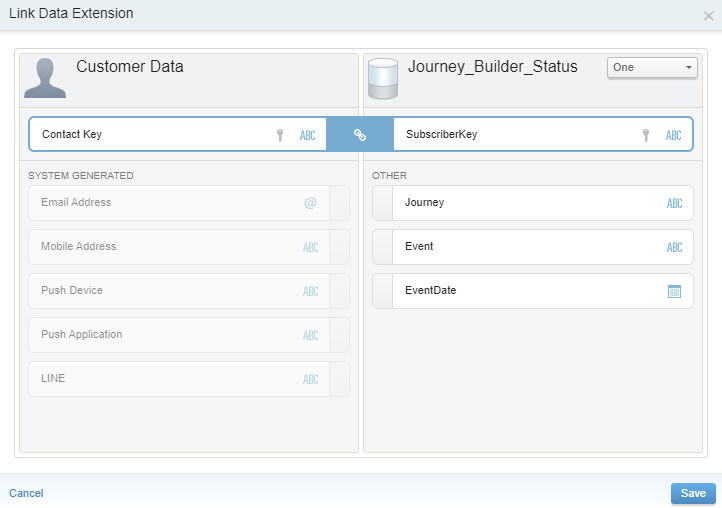
Journey_Builder_Status Data Extension

The Update Contact activity writes to this Data Extension.

  • SubscriberKey, Text (254), Primary Key
  • Journey, Text (100), nullable
  • Event, Text (100), nullable
  • EventDate, Date, nullable, defaulted to the current date

It will need to be mapped Subscriber Key to Contact Key in Contact Builder — one-to-one.

Journey_Builder_Log Data Extension

This is the final destination of the Journey log data.

  • SubscriberKey, Text (254), Primary Key
  • EventDate, Date, Primary Key
  • Journey, Text (100), nullable
  • Event, Text (100), nullable

Journey_Builder_Log Query Activity

This sweeps rows from Journey_Builder_Status to Journey_Builder_Log.

Journey_Builder_Log Automation

Runs hourly, ends never.

  • Step 1, Query Activity: Journey_Builder_Log

Once that’s done, drag as many Update Contact Activities that you need to your Journey canvas for recording events. In those activities, specify these field values: Event, EventDate and Journey.

This works for tracking entry and exit, depending on where you place the Update Contact activities.

Selecting random data extension rows with AMPscript

In a triggered send scenario, there’s no chance to leverage query activities to prepare auxiliary data for display in an email. I recently had this request from a client:

Display a random set 6 of the products in a specific data extension in the body of this email.

That’s tricky with AMPscript since you can only retrieve ordered rows based on fields and values already in the data extension (e.g you can’t order by GUID(), random() or _customObjectKey with the lookup functions). There are also no arrays or sorting outside of the rowset lookup functions in AMPscript.

Here’s a solution that worked for me:

DataExtensionTest

EmailAddressSubscriberKeyFirstNameLookupKey
doug@limedash.com8473Doug1
suzy@limedash.com5497Suzy1
dale@limedash.com7114Dale1
barb@limedash.com5767Barb1
curt@limedash.com5152Curt1
nora@limedash.com7014Nora1
leon@limedash.com8225Leon1
lily@limedash.com9496Lily1

(NOTE: I added a lookupKey column to my data extension with a default value to facilitate retrieving all of the rows)

Output 1


arr(1): {2}{6}{7}{4}{8}{3}{5}{1}
arr(2): 5497|7014|8225|5767|9496|7114|5152|8473
subscriberkey1: 5497, firstName: Suzy
subscriberkey2: 7014, firstName: Nora
subscriberkey3: 8225, firstName: Leon
subscriberkey4: 5767, firstName: Barb
subscriberkey5: 9496, firstName: Lily
subscriberkey6: 7114, firstName: Dale
subscriberkey7: 5152, firstName: Curt
subscriberkey8: 8473, firstName: Doug

Output2


arr(1): {7}{3}{5}{6}{8}{1}{2}{4}
arr(2): 8225|7114|5152|7014|9496|8473|5497|5767
subscriberkey1: 8225, firstName: Leon
subscriberkey2: 7114, firstName: Dale
subscriberkey3: 5152, firstName: Curt
subscriberkey4: 7014, firstName: Nora
subscriberkey5: 9496, firstName: Lily
subscriberkey6: 8473, firstName: Doug
subscriberkey7: 5497, firstName: Suzy
subscriberkey8: 5767, firstName: Barb

I’m sure there are other ways of approaching this. Know of a simpler way or an alternate approach? Please share!

Reference