Samsung SSD Awesomeness
(h/t ghacks.net)
the personal blog of adam spriggs

Find one of many strings in a set of files
grep -E "str1|str2|str" file*.*
Search through files with multiple file extensions
grep -r --include=\*.{html,php,htm} str /path/to/directory/to/grep
Search through files with multiple extensions with one find command
find -name "*.jsp" -o -name "*.java" | xargs grep -i "whee"
Search through files with multiple extensions with one find command, regex method
find -regex ".*\(\.jsp\|\.php\|\.html\|\.htm\).*" | xargs grep -i "whee"
Replace newlines with HTML breaks in a file
sed ':a;N;$!ba;s/\n/\/g' file.txt
Rename multiple files
for f in *.txt; do mv "$f" "${f%.txt}.bak"; done
Directory sizes here and below
du -sm $(find $1 -type d -maxdepth 1 -xdev) | sort -g
Find files containing between 600 to 700 characters, inclusive.
find . -size +599c -and -size -701c
Update a file’s timestamp, but do not create files
touch -c file*.txt
PowerPoint (PPT) often gets a bad rap when it comes to video.
Here’s a little tutorial on how to convert a video so it will play embedded in a PPT presentation.

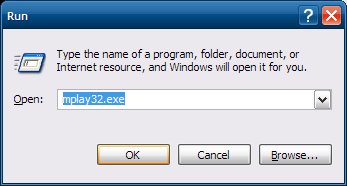
1. First and foremost, PPT will only play video that mplay32.exe (Windows Media Player 5) will play. If you want to test a video to see if it will work in PPT, click Start -> Run -> mplay32.exe. Open your video and click the play button. If you get an error, then it won’t work in PPT. Here’s a good site with more information about video in PPT.

2. So you have a video that won’t play in mplay32.exe. You need to convert it. Enter the Open Source MediaCoder. You can download it here.

3. Install and fire up MediaCoder. Click the Add button. Click Add File, browse to the video file and click Open.

4. Click Video tab on the left side of the bottom pane.

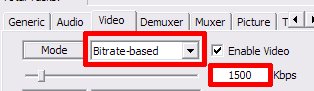
5. In the Mode drop-down box, choose “Bitrate-based”. Change the bitrate to 1500.

6. Set the Format and Container both to MPEG1

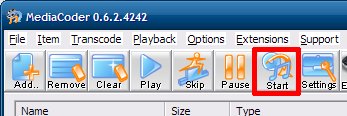
7. Click the Start button. Wait until it finishes.

8. Open it in mplay32.exe and click the Play button. If it plays, it’ll work in PPT.

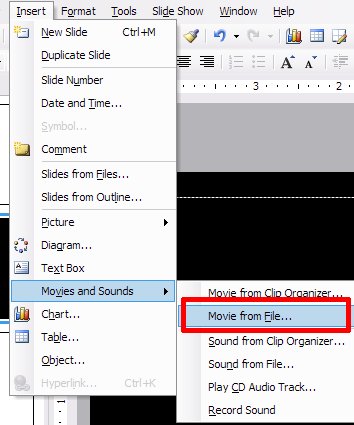
9. Start PPT and insert the video by clicking Insert -> Movies and Sounds -> Movie from File.

10. Click the Automatically button so it plays when you visit the slide. Resize the video box as needed. If the video is in 16×9 format, you may need to set the background to black. Start your presentation. Voilà.
![[pdfsam]](https://sprignaturemoves.com/wp-content/uploads/2008/02/pdfsam.jpg)
OK, so I have PDFs of several receipts that I need to fax into my health insurance company for flexible spending reimbursement. The Windows Fax “printer” doesn’t allow me to string together multiple files, so I’m in a pickle.
I don’t have Adobe Acrobat, so I start Googling with “(combine|merge) (pdf|pdfs) -mac -apple -purchase -demo -trial -shareware -acrobat”
I find pdfsam, download & install it, add my PDFs, set the output file, click Run and, bam, a merged PDF. Sweet.
I tried another option as well — pdftk. If you’d rather go the commandline route, this’ll work just as good.