A mysterious box showed up on my doorstep a few weeks ago.
Inside?
A CR-48 Google Chrome netbook.
Little excited? You bet.
Here are a few observations after giving it a work-out.

Hardware
- The CR-48 is just the right size. It’s very lightweight and sleek. It feels cool. The black matte finish shows every greasy fingerprint, but that’s OK.
- Google took some liberties with the keyboard. There are no Fn, Home, Delete, PgUp and PgDn keys. It wasn’t really apparent right out of the box what all of the keyboard shortcuts were. Here is the best list I found. Ctrl-Alt-/ is your friend.
- The clickable touchpad is a real bummer. Two-finger scrolling is often slow and the sensitivity gets wonky some times. Right and middle clicking required some Googling to figure out. (Ctrl-Click/Tap is middle click and Alt-Click/Tap is right-click if you’re curious)
- Other than the touchpad, the only moving part is a small cooling fan. I’ve only heard it once.
- This bad-boy boots in under 20 seconds. There’s no real “shutting down” either. It‘s more of a log-out-and-go-to-sleep deal.
- The battery life is amazing. It will last a full 8 hours of continuous use.
- There’s a webcam for Google Chat. There’s also a light sensor that will adjust the screen brightness depending on the ambient light in the room. Slick.
- I did hook it up to a large LCD TV and it handled it surprisingly well. Seemed to be mirror mode only.
- If you’re wondering about the processor, memory, etc, here’s a good summary of all the technical specs.
Software
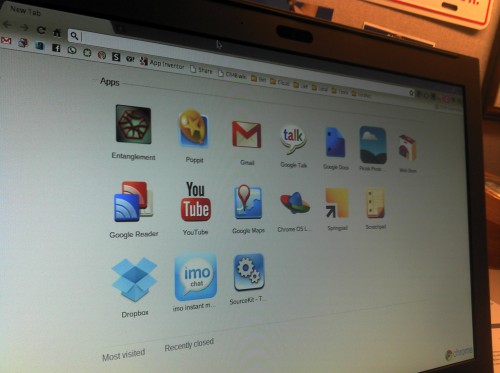
- The New Tab window is the desktop. That’s it. There are some windows that float up from the bottom of the page. Other than that, it’s all Chrome tabs and web apps.
- There is some media browsing functionality. The media browser window appears as a window from the bottom of the screen when you insert a device or hit Ctrl-O. It allows you to view certain media files in local storage, on some USB flash drives and SD cards. You can attach or upload files from all of those places.
- There are two OS update channels available: Beta and Development. The Development channel is the sandbox for the bleeding-edge new stuff. It’s pretty slow and unstable and gets updated frequently. The Beta channel is more refined and definitely faster. It has been updated once since I’ve had the device. The release included a slew of noticeable improvements.
- Yes, you can install Ubuntu on the CR-48 and make it into a traditional machine if you want. It’s complicated but nicely documented by the Chromium folks.
Options for doing web development
Hitting Ctrl-Alt-T will get you to the limited command-line interface called “crosh”. From there you can use ssh to connect to another box. If you’re comfortable coding from command-line with vim or emacs, this will work.
However, if you need the brawn of an IDE, some FTP tools, etc, then things get a little more complicated and tedious. There are some cloud-based IDEs/editors like ShiftEdit, PHPAnywhere.net, and SourceKit that will work…if you can massage your workflow into them.
If you need more options, then flipping the developer switch switch is the way to go. The switch is behind a sticker inside the battery compartment. Enabling developer mode will provide more unrestricted shell access. This is the starting point for installing another OS on the machine if you decide to go that route.
I did switch to the Chrome OS Development channel and flip the developer switch. I ran it like that for about a week. Eventually, I restored it back to the Beta channel with an image on a flash drive. It was just a little too unstable for the simple browsing and note-taking that I was doing.
Conclusions
- The CR-48 is really more like an iPad (minus the touchscreen, plus a keyboard) than it is a traditional netbook.
- How the ChromeOS works with files in local storage is definitely a work in progress. The video is mostly slow and choppy. I don’t see Chrome OS making a lot of mainstream headway until these two things get ironed out.
- If ChromeOS and Android converge as Google’s Eric Schmidt suggested then I guess I’ll install Ubuntu on it.
- The CR-48 is a nice and uncomfortably simple device. It’s made me think a lot about how reliant I am on local storage.
- I’m still excited and humbled that I even have one of these devices. Thank you, Google.
Helpful Links