Category: spriglets
Spriglet #17: How to eat a Chipotle burrito
This is the best way that I have found to eat a Chipotle Burrito.


My go-to: Chicken burrito with black beans, tomatoes, sour cream, and cheese
Spriglet #16: Simple HTML signatures in Gmail

- Create your signature in HTML in a text file named temp.html. Here’s mine:
Adam Spriggs //

sprignaturemoves.com //

twitter.com/wvpv //

816-555-1212

"what others do with talent, I do with obstinate fixation"
- Open temp.html in your browser — in another window
- Enable Labs in Gmail
- Enable the Canned Response feature
- Compose a new email
- Highlight your signature in the other browser window
- Drag it into the body of your e-mail
- In the Canned responses drop-down, choose new canned response.
- Name it “html sig”
- Click Settings turn off the signature
- From now on when you compose an e-mail, simply choose “html sig” from the canned response drop-down.
- Voilà
Spriglet #15: Encoding video that will play in Microsoft PowerPoint
PowerPoint (PPT) often gets a bad rap when it comes to video.
Here’s a little tutorial on how to convert a video so it will play embedded in a PPT presentation.
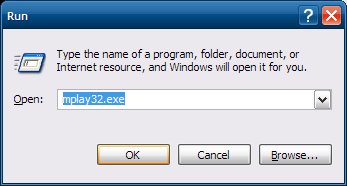
1. First and foremost, PPT will only play video that mplay32.exe (Windows Media Player 5) will play. If you want to test a video to see if it will work in PPT, click Start -> Run -> mplay32.exe. Open your video and click the play button. If you get an error, then it won’t work in PPT. Here’s a good site with more information about video in PPT.

2. So you have a video that won’t play in mplay32.exe. You need to convert it. Enter the Open Source MediaCoder. You can download it here.

3. Install and fire up MediaCoder. Click the Add button. Click Add File, browse to the video file and click Open.

4. Click Video tab on the left side of the bottom pane.
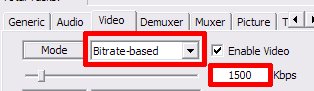
5. In the Mode drop-down box, choose “Bitrate-based”. Change the bitrate to 1500.

6. Set the Format and Container both to MPEG1
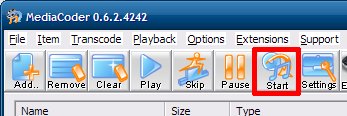
7. Click the Start button. Wait until it finishes.

8. Open it in mplay32.exe and click the Play button. If it plays, it’ll work in PPT.
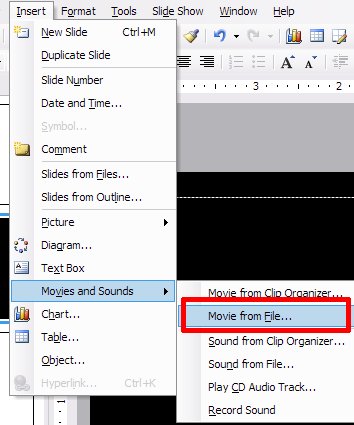
9. Start PPT and insert the video by clicking Insert -> Movies and Sounds -> Movie from File.

10. Click the Automatically button so it plays when you visit the slide. Resize the video box as needed. If the video is in 16×9 format, you may need to set the background to black. Start your presentation. Voilà.
Spriglet #13 – Posterize a photo in Adobe Fireworks
Adobe Photoshop has a nice posterize command built-in. Not so in Fireworks. I searched high and low for a nice way to do it. In desperation I posted an entry on the official Adobe Fireworks message board and Ilya Razmanov was posted exactly what I needed.
Here’s the steps with pictures to illustrate his technique:
1. Open a cool photo in Fireworks (Yes, Ray Allen is cool, if you didn’t already know).
![[ray allen]](https://sprignaturemoves.com/wp-content/uploads/2008/02/act_ray_allen.jpg)
2. Add this effect: Adjust Color -> Levels
![[posterize example 1]](https://sprignaturemoves.com/wp-content/uploads/2008/02/ff-posterize1.jpg)
3. Set the max value in Output Level to 4
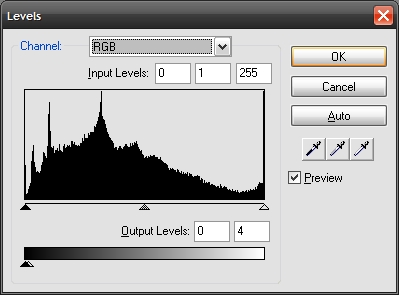
4. Add another effect: Add this effect: Adjust Color -> Levels. This time set the max Input Level to 4

6. Voila! Here’s what you get. You can tweak the levels on both sides to get the amount of posterization you want.